Log in with credentials
Close initial window
Tools>>Configuration>>Security
Log in again
Users>>New
Add name and email on first tab
Roles>> for general staff make them a Requstor (move roll over) and move over the school and Current Data Source and Department Field Trip (if coach also add school name and athletics)
Account
user (same as email username)
initials12345 (af12345)
No Save
*instead of deleting admins or teachers, you can just edit old users who have left
For elementary, only add department heads, counselor, and CAMP teachers.
For middle and high school, add all
support@transfinder.com
Tuesday, May 15, 2018

Friday, April 27, 2018
Removing a Voice Note from iPad
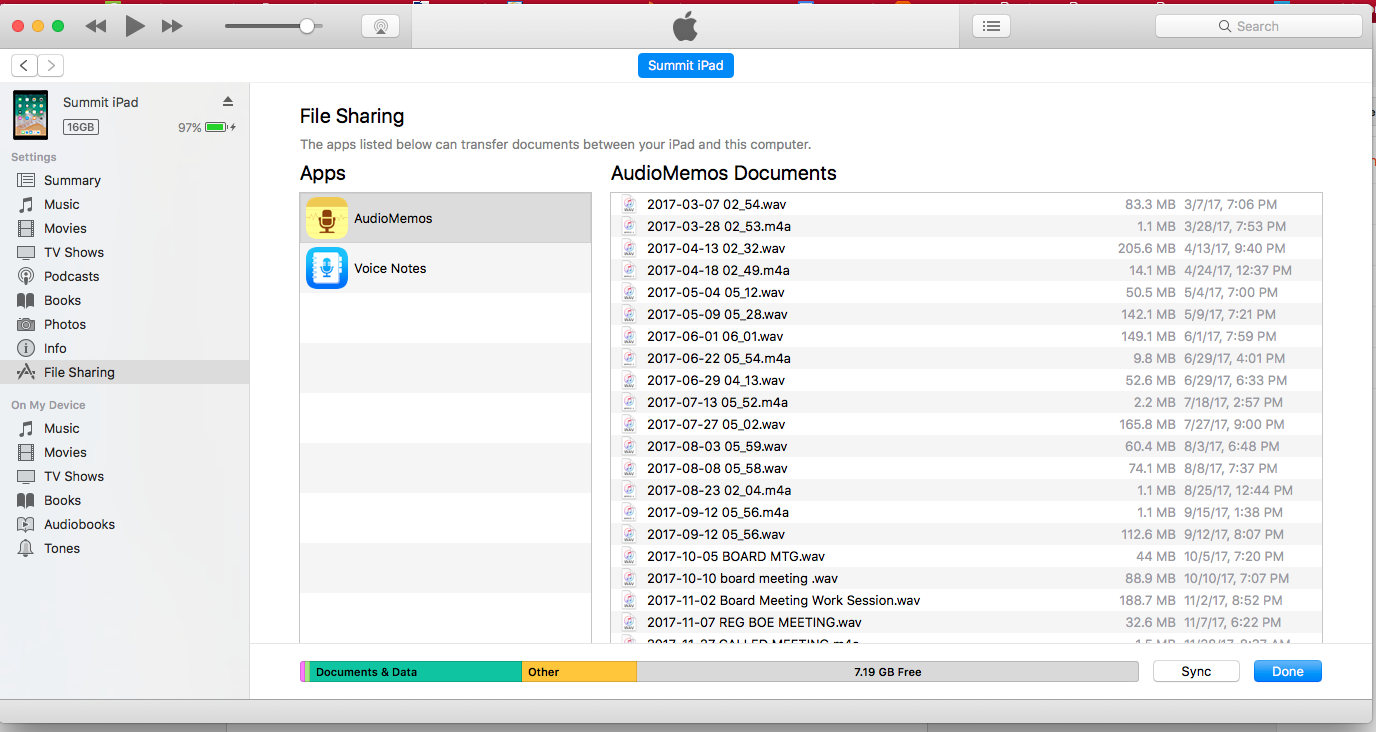
Open the Finder
Clcik on Files
Drag the file to the desktop
Wednesday, March 28, 2018
Messages/iChat Not working after upgrading to High Sierra (Jabber)
Messages/Google Chat Not working:
If you want to continue to use Google Talk via Messages, you'll need to re-enable the "less secure" authentication mechanism in your Google account.
- Select "Turn on"
- Cringe a little bit
- Log into Google Talk via Messages
- https://deciphertools.com/blog/2015_02_11_google_talk_not_working_messages/
Go to system settings and go to Internet Accounts and delete your google account.
Open Terminal
find ~/Library/Preferences -name "*iChat*" -delete
then
rm -rf ~/Library/Caches/com.apple.Messages
then
rm -rf ~/Library/Messages
and reboot
Now open Messages and add your google account via Jabber. Then go to preferences in Messages and go to Accounts and go to server settings and make sure settings are as follows:
Server: talk.google.com
Port: 5223
Check Use SSL
Then go to Account Information and Enable this account
I rebooted again and then opened Messages and made sure my buddy list was there.
Then I went to System Preferences and go to Internet Accounts and add your google account.
Upon doing this a message popped up for me asking to Add Google Talk to Messages and WHOA it is working.
I can now send and receive messages, have my calendar and everything as before.
Before this I could receive messages and see buddies but couldn't communicate with them.
Tuesday, March 13, 2018
Locked Office/IP Phone

If a locked icon is showing on an office phone or IP phone...
- hold down the star button (*) for 5 seconds until the screen changes.
- When prompted for a passcode, do not put anything in.
- Just hit the ok button (menu button).
- The phone should unlock.
- If it does not unlock, when it asks for a password, enter: 123 then hit ok.
***one of these instructions locks the phone and the other unlocks the phone.
Wednesday, March 7, 2018
DRC App Deployment
Before deploying DRC configurations to Org Units ensure that the DRC app has been pushed out to all Chromebooks.
Device Management > Chrome Management > Device Settings > Kiosk Settings
** If the app is removed and needs to be added again, the ID and URL can be found in Downloads on the DRC Portal. App is added through Custom Apps.
CREATING CONFIGURATION FILES
DRC Portal > Select TSM > Deployment > Deployment Configuration Files > Create Deployment Configuration > Save
ASSIGNING APP TO ORG UNITS
Device Management > App Management > DRC App Settings > Select Org Unit > Configure (override) > Upload Chromeos.json
Device Management > Chrome Management > Device Settings > Kiosk Settings
** If the app is removed and needs to be added again, the ID and URL can be found in Downloads on the DRC Portal. App is added through Custom Apps.
CREATING CONFIGURATION FILES
DRC Portal > Select TSM > Deployment > Deployment Configuration Files > Create Deployment Configuration > Save
ASSIGNING APP TO ORG UNITS
Device Management > App Management > DRC App Settings > Select Org Unit > Configure (override) > Upload Chromeos.json
Thursday, October 5, 2017
Settings in Campus Instruction
changing settings in Campus Instruction.
Hide dropped students
show picture
open with CI
etc...
Hide dropped students
show picture
open with CI
etc...
Wednesday, June 14, 2017
Grad Rate Calculation/Prediction
Here is my process (just FYI for you and a reference for me for next year!)
1. I ran a report for kids with a Date Entered 9th grade of 08/16/2013 to get a preliminary cohort number. (Ad Hoc titled Date Entered 9th GRAD RATE PREDICTOR)
2. I filtered on the list for withdrawal codes and totaled those per code.
3. Change to the next year in IC and run the same report.
4. Filter entry codes (other than C: Continuing in Same School) to get the number of students who transferred in that year.
5. I filtered on the list for withdrawal codes and totaled those per code.
6. Repeat steps 3-5 for junior and senior years.
7. Search GUIDE for claims for any kids listed as Dropouts and have Annette check folders for records requests. Remove any found from the denominator (or add a transfer code to the totals for the Excel calculation sheet).
8. Use those totals to fill in the DOE calculation sheet. (I also figured this by hand at a separate time and got the same number).
9. Check for No Shows in each year remembering that some kids are retained (so you can't just use cohort years).
**ALSO- I also used a Duplicate Enrollment GRAD RATE to get a list of kids who had multiple enrollments in a year (including no shows). I ran it for each year keeping a list of names with duplicates. I then used the ad hocs listed above to add and remove enrollments to make a master list. Make sure to cross-reference with the duplicate names list.
Finally, I took this list and went kid by kid to determine end status.
9. Check for No Shows in each year remembering that some kids are retained (so you can't just use cohort years).
**ALSO- I also used a Duplicate Enrollment GRAD RATE to get a list of kids who had multiple enrollments in a year (including no shows). I ran it for each year keeping a list of names with duplicates. I then used the ad hocs listed above to add and remove enrollments to make a master list. Make sure to cross-reference with the duplicate names list.
Finally, I took this list and went kid by kid to determine end status.

Subscribe to:
Posts (Atom)