Monday, May 16, 2022

Finding Mac/Physical Address in Windows 10


How to find MAC address using Control Panel

To determine the physical address of a network card on Windows 10 with Control Panel, use these steps:

  1. Open Control Panel.
  2. Click on Network and Internet.
  3. Click on Network and Sharing Center.


  4. Click the Change adapter settings from the left pane.

    Double-click the Ethernet or Wi-Fi adapter depending on your connection.


  5. Click the Details button.


    Source: Windows Central

  6. Confirm the MAC address of the network adapter (called physical address sometimes).


Thursday, January 27, 2022

Running Presidential Awards

 APs usually ask for this after Semester 1 ends


Use the Ad Hoc folder called Presidential Awards

1. Run the ad hoc for milestones (if they have been imported). This will give you performance levels. 

2. Grades for Presidential will give you posted Q2 grades. Filter and removed anything other than (ELA, math, sci, ss). 

3. Transcript Grades for Presidential will give you all 5th graders posted grades from last year. Filter and removed anything other than (ELA, math, sci, ss). 


Combine the sheets for numbers 2 and 3 above making sure the fields line up. Sort on the last and first name. You will also need to concatenate the name fields. You might have to use the text to columns feature to format the numbers correctly. 

Once you have done this, subtotal at each change in full name to show the average of all the grades. Then paste special (values) to get the averages in another sheet. Then filter on the word averages and paste special one more time in another sheet. Sort these averages. 

Then all you need to do is add the performance levels in this sheet. 

Convert Numbers in Excel

 https://support.microsoft.com/en-us/office/convert-numbers-stored-as-text-to-numbers-40105f2a-fe79-4477-a171-c5bad0f0a885


Cells with numbers stored as text with green triangles

Numbers that are stored as text can cause unexpected results. Select the cells, and then click Excel Error Alert button to choose a convert option. Or, do the following if that button isn't available.

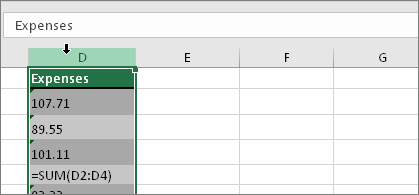
1. Select a column

Selected column

Select a column with this problem. If you don't want to convert the whole column, you can select one or more cells instead. Just be sure the cells you select are in the same column, otherwise this process won't work. (See "Other ways to convert" below if you have this problem in more than one column.)

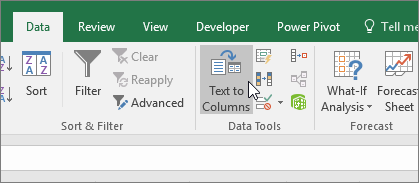
2. Click this button

Data tab, Text to Columns button

The Text to Columns button is typically used for splitting a column, but it can also be used to convert a single column of text to numbers. On the Data tab, click Text to Columns.

3. Click Apply

The rest of the Text to Columns wizard steps are best for splitting a column. Since you're just converting text in a column, you can click Apply right away, and Excel will convert the cells.

4. Set the format


Sunday, August 9, 2020

Excel: Sort by Month and Day


  1. Insert a blank column next to your Date column.
  2. Assuming your first date is in cell A4, in the blank column, enter the formula: =TEXT(A4,"MMDD")
  3. Copy this formula down to the bottom of your data.
  4. Sort your data on this column.

Tuesday, June 30, 2020

Disable SLDS (for summer)

Do this so that kids cannot see their schedule. 


To disable SLDS- you will need to go to Index> Sys Admin> Custom > Custom Tab>SLDS Portal > Uncheck the publish to Portal box> Save

Thursday, June 18, 2020

Smart Fusion Hosted Instructions

Smart Fusion Hosted Instructions

For a Mac

1.     In any browser, navigate to this address (please bookmark it as Smart Fusion) https://smartfusion2.harrisschool.solutions/rdweb/webclient/index.html


2.     Enter this for the user and password

User:  franklinfirstinitiallastname  (for example, franklintsmith)
Password:  ChangeMe!

3.     You will receive a message that includes “Click here to change your password” Click that link


Domain Username:  CUSTOMER\franklinfirstinitiallastname
            (for example, CUSTOMER\franklintsmith)
Current Password:  ChangeMe!
New Password:  FClions!
Confirm Password:  FClions!

Click Submit

It will say your password has been successfully changed. Click OK
(If prompted to save this password, please do so)


4.     You will be taken back to the main page. Log in with the username and the FClions! password.


5.     You will come to a page with an icon named Smart Fusion Franklin BOE. Click that icon


6.      It should then connect and show you the same gray login box that users have seen before. The same username and password that they have previously used to login to the application will still work here.


For a Windows Machine

(please bookmark it as Smart Fusion)

2.     Click on the link to Install Harris School Solution Hosting for Windows

3.     Install that icon to the desktop.

4.     Then click on that icon and follow steps 2-6 from above

Make sure to remove the old icon from PCs and the Remote Desktop icon from Macs. 


Tuesday, February 4, 2020

CUPS Print Settings

CUPS (formerly known as Common UNIX Printing System), is a network printing system that allows Mac OS devices to connect to various printers on a network.


As the CUPS Web Interface may be disabled by default on your Mac, you will need to enable it.


To do this, you will first need to visit:
 http://localhost:631/printers/

If you get a message stating that the interface is disabled, you will need to open the Terminal and run this command

cupsctl WebInterface=yes

Hit Enter

Now you can try going to the CUPS menu (above) again.